![[Previous]](prev.gif) |
![[Contents]](contents.gif) |
![[Index]](keyword_index.gif) |
![[Next]](next.gif) |
|
|
|
|
 |
This version of this document is no longer maintained. For the latest documentation, see http://www.qnx.com/developers/docs. |
This chapter includes:
To install and use QNX Momentics, you'll need a desktop machine running one of the following for your host development environment:
For particular system requirements (e.g. amount of disk space you'll need to install), see the installation note that came with your software.
The QNX Software Development Platform uses InstallShield on all hosts except Neutrino (which uses tarballs and shell scripts) to help you install and remove software. For specific instructions, see the installation note that was shipped with your software.
If for some reason (e.g. hardware incompatibility) the QNX SDP doesn't install properly, you should:
The QNX Momentics Tool Suite is organized around these two main areas:
The QNX_HOST environment variable identifies the directory that holds the host-related components:
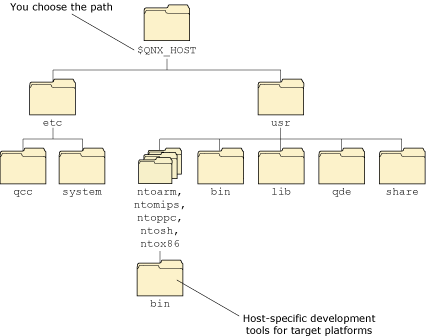
The host-related directory structure.
The QNX_TARGET environment variable identifies the directory that holds the target-related components:
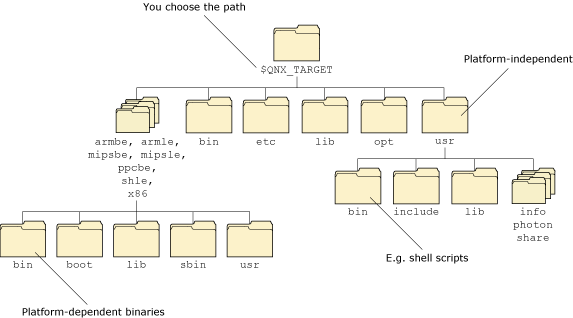
The target-related directory structure.
Neutrino also uses these environment variables to locate files on the host machine:
Here's where some of the key components are installed:
| Component | Location |
|---|---|
| Buildfiles | $QNX_TARGET/platform/boot/build/boardname.build |
| Command-line utilities | For the host:
$QNX_HOST/usr/bin and
$QNX_HOST/platform/bin
For the target: $QNX_TARGET/bin and $QNX_TARGET/platform/bin and $QNX_TARGET/platform/sbin |
| Device drivers (binaries) | $QNX_TARGET/platform/sbin |
| Device drivers (DLLs) | $QNX_TARGET/platform/lib/dll |
| Filesystems | $QNX_TARGET/platform/sbin |
| GUI-related | $QNX_TARGET/usr/photon |
| Shared libraries | $QNX_TARGET/platform/lib |
| System header files | $QNX_TARGET/usr/include |
| Documentation | Eclipse plugin directory, also in $QNX_TARGET/usr/help/product on self-hosted Neutrino systems |
If you install any BSPs or DDKs, they're installed under ${QNX_TARGET}, or in a directory of your choosing. The IDE creates a workspace, a directory that holds your development projects. By default, this workspace is in your home directory on Linux, and in C:\QNX640 on Windows.
For information about the directory structure on a Neutrino runtime system, see “Where everything is stored” in the Working with Files chapter of the Neutrino User's Guide.
How you access the components of QNX Momentics depends on your host machine:

or by choosing . The menu lets you add or activate licenses, configure your machine to build for a specific version of QNX Neutrino, run Phindows, and start the IDE.
Here's the general procedure for updating a version of the QNX Software Development Platform or other components you've purchased:
For more information about setting up your myQNX account, see On-line Technical Support. There's a printed copy in the QNX Software Development Platform box, and a PDF version on the DVD and on our website.
 |
In the next step, you'll download a file. Don't download it into a directory whose path contains spaces. For example, don't download the file into C:\Documents and Settings\my_userid\Desktop. |
If you installed an evaluation copy of the QNX Software Development Platform, you can upgrade to a permanent copy without reinstalling. For more information, see the Installation Guide.
You'll probably want to use some sort of version-control system to manage and track changes to the software that you develop.
| For information about: | See: |
|---|---|
| CVS (Concurrent Versions System) | Using CVS in the Neutrino User's Guide, and Managing Source Code in the IDE User's Guide. |
| Subversion (svn) | Collins-Sussman, Ben, Fitzpatrick, Brian W., Pilato, C. Michael. 2004. Version Control with Subversion. Sebastopol, CA: O'Reilly & Associates. ISBN: 9780596004484 |
QNX Momentics includes clients for both CVS and Subversion.
You can develop software on a self-hosted QNX Neutrino system. For more information on working with Neutrino, see the Neutrino User's Guide; for information on developing software on Neutrino, see the Neutrino Programmer's Guide and the IDE User's Guide.
If you have a Neutrino host, you can communicate with other hosts in various ways:
You can install different versions of QNX Momentics on your machine. You can use the IDE or the qconfig utility to set up your environment to build for the correct version. On Windows hosts, use QWinCfg, a graphical front end for qconfig that you can launch from the Start menu.
|
Coexistence of 6.3.x and 6.2.1 is supported only on Windows hosts. |
For more information, see the Compiling and Debugging chapter of the Neutrino Programmer's Guide and the IDE Concepts chapter of the IDE User's Guide.
Neutrino is well suited to embedded systems. For information about creating OS images, downloading them to your target hardware, and running your software, see:
You don't always need to have the hardware to run your software; for more information, see “Getting started before you have your target” in the What is QNX Momentics? chapter in this guide.
|
|
|
|