![[Previous]](image-lib/prev.gif) |
![[Contents]](image-lib/contents.gif) |
![[Index]](image-lib/keyword_index.gif) |
![[Next]](image-lib/next.gif) |
|
|
|
|
Once you've created or opened an application, you'll probably want to add, delete, and modify widgets. This chapter describes how to work with widgets.
It includes: |
For information on using specific widget classes,
see:
Since widgets inherit a lot of behavior from their parent classes, you should make yourself familiar with the fundamental classes: PtWidget, PtBasic, PtContainer, and so on. |
There are two major types of widgets:
Container-class widgets can contain other widgets-including other containers. Widgets placed inside a container are known as child widgets; the hierarchy resulting from this nesting is called the widget family. Container widgets can look after sizing and positioning their children, as described in the Geometry Management chapter.
When working with container-class widgets in PhAB, remember the following:
For more info, see "Selecting widgets" in this chapter.
If your program has to interact with a widget, that widget must have a unique instance name. Using this name, PhAB generates a global variable and a manifest that let you easily access the widget from within your code.
To view or edit a widget's instance name, use the Widget Instance Name field at the top of the Control Panel:

Editing a widget's instance name.
|
|
You can optionally include the instance name in the widget's memory. See "Including instance names" in the Working with Applications chapter.
When you create a widget, PhAB automatically gives it a default instance name. Typically, this default name is the widget's class name. For example, if you create a PtButton-class widget, the Control Panel displays PtButton as the instance name.
If a widget simply serves as a label or window decoration, it doesn't have to be accessed from within your application code. So you should tell PhAB to ignore the widget's instance name during code generation. To do this:
Or
You should give a widget a unique name if:
|
To keep the number of global variables to a minimum, don't give a widget a unique name unless you really need to access the widget from within your application. If you've given a widget a name and later decide you don't need the name, just change it back to the widget's class name or blank it out. |
As described in the chapter on International Language Support, you'll need an instance name for every text string in your application's user interface. These instance names aren't needed in your code.
To indicate that an instance name isn't required for code generation, start the name with the @ character. PhAB recognizes such a name when generating the text language database, but skips over it when generating code.
If you don't want to create a unique instance name for a string that's to be translated, specify a single @ character for the instance name, and PhAB appends an internal sequence number to the end.
If you don't want to create unique instance names, but you want to organize the text for translation (say by modules), you can give the strings the same instance name, and PhAB will append a sequence number to it. For example, if you assign an instance name of @label to several strings, PhAB will generate @label, @label0, @label1, ... as instance names.
PhAB resets the instance name of a widget back to the widget class name if it detects a duplicate name when you:
To create a widget:
Once you've created a widget, you're returned to select mode. To stay in create mode so you can create several widgets of the same type:
To cancel create mode without creating a widget:
Or
In this section we look at:
When PhAB is in select mode, the pointer appears as an arrow. To put PhAB into select mode:
Or

To select a single widget, you can:
Or
To select a single widget using point and click:
The Next and Previous buttons in the Control Panel let you select any widget in the current module.
| To select the: | Click on: | Or press: |
|---|---|---|
| Previous widget in the current module |
|
F9 |
| Next widget in the current module |
|
F10 |
The Control Panel also provides a Module Tree mode that displays a tree of all the widgets in the module. Using this tree, you can:
To select a widget from the tree, click on the widget's name.
To select multiple widgets, you can:
Or
Or
|
When you select two or more widgets, the Control Panel displays only the resources that those widgets have in common. Editing any of these resources will affect all the selected widgets. |
A bounding box lets you select several widgets all at once:
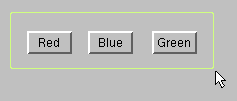
To add or remove a widget from the current list of selected widgets, hold down Shift and click on the widget. This is also known as the extended selection method.
If the widget isn't already selected, it'll be added to the list. If the widget is already selected, it'll be removed from the list.
|
The above methods for selecting multiple widgets work only for widgets at the same hierarchical level. For example, let's say you've just selected two buttons inside a window. You can't extend that selection to include a button that's inside a pane. |
To select multiple widgets, using the Control Panel's Next and Previous buttons:
Every time you click, PhAB adds the next widget in the current module to your selection.
To remove the last widget from the current list of selected widgets:
Every time you click, PhAB removes another widget.
To select a widget inside a group, you can use the Control Panel's Module Tree mode or its Next and Previous buttons.
To select a single widget within a group:
To select one or more widgets within a group:
If you can't find a widget (it may be hidden behind another widget or is outside the boundaries of its container), do the following:
PhAB lets you use a grid to position and size widgets. You can turn the grid on or off, or change its origin and size. The grid doesn't appear onscreen.
To change the grid:
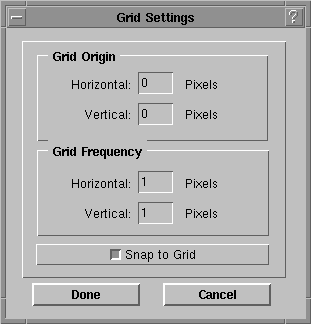
Grid Settings dialog.
|
Grid settings remain for the current session only. They aren't saved. |
You can align several widgets to another widget or to their parent container.
When you use this method to align widgets, the widgets are aligned to the first widget you select:

To align widgets to their parent container:
If you choose both vertical and horizontal options, make sure to click on both Align to Container buttons.
|
When aligning widgets to a container you may want
the widgets to retain their relative positions to each other. To
do this:
|
Common User Access (CUA) is a standard that defines how a user can change the keyboard focus. A widget is focusable if it can be given focus by pressing CUA keys or by calling a focus function.
The following keys move focus only to focusable widgets:
| To go to the: | Press: |
|---|---|
| Next widget | Tab |
| Previous widget | Shift -Tab |
| First widget in the next container | Ctrl -Tab |
| Last widget in the previous container | Ctrl -Shift -Tab |
For information on specifying the order in which the widgets are traversed, see the section "Ordering widgets" in this chapter.
Use the following Pt_ARG_FLAGS flags to control focus for a widget:
In addition, use the following Pt_ARG_CONTAINER_FLAGS flags to control focus for a container:
All descendants of the PtBasic widget have the following callback resources:
For more information, see the Widget Reference.
For a list of functions that deal with focus-handling, see the Summary of Entries in the Photon Library Reference.
In PhAB, each widget exists in front of or behind other widgets. This is known as the widget order, and you can see it when you overlap several widgets.
Here's how to ensure that widgets are in the order you want (so that, for example, using CUA keys to move between widgets works in the correct order):

PhAB will place the widgets in the order you selected them.
|
If you're not using PhAB, the widget order is the order in which the widgets are created. To change the order, see "Ordering widgets" in the Creating Widgets in Application Code chapter. |
To view the widget order, do one of the following:
Dragging a widget is the easiest way to move a widget in most situations since it's quick and fairly accurate:
To cancel a drag operation, press Esc before releasing the mouse button.
|
|
There are several preferences that you can set for dragging (see the "Customizing your PhAB environment" section in the chapter on PhAB's environment):

To place one or more widgets at specific coordinates:
To move one or more widgets directly from one container or module to another:
Or
Or


When you select a widget or module, you'll see its height and width-including margins-displayed in the speedbar's height and width fields. (These values are maintained by the Pt_ARG_DIM resource; see the description of PtWidget in the Widget Reference.)
To resize a selected widget, do one of the following:
Or
Or
|
If a module is in Test mode, its resize handles won't
function. To resize the module using the handles,
click on the module-type tab to switch the
module to build mode.
If you have trouble seeing a widget's resize handles because of the background color you've chosen, you can change the resize-handle color. For more info, see "Customizing your PhAB environment" in the PhAB Environment chapter. |

The nudge tool has three modes of operation. To switch between these modes, click on the small box in the center of the arrows. The box changes to indicate which function is active.
| If the box is a: | Clicking on an arrow will: |
|---|---|
| Square | Nudge the currently selected widget |
| + | Stretch the widget |
| - | Shrink the widget |
Each arrow has a different effect. Experiment to see exactly how this tool works. One thing you should note: If the box is a "-", clicking on an arrow shrinks the widget in the opposite direction of the arrow.
Every click on the nudge tool will nudge, stretch, or shrink the selected widget by one pixel. To nudge by multiple pixels, hold down the mouse button.
|
You can also use the Ctrl key and the numeric keypad to nudge, stretch, or shrink a widget. Each key corresponds to one of the nudge buttons. For example, Ctrl -5 switches between modes, and Ctrl -/\ works like the tool's /\ button. |
PhAB's clipboard lets you cut, copy, and paste widgets. You can't use this clipboard with other applications but you can use it to copy or move widgets from one PhAB application to another.
You'll find the clipboard helpful for two reasons:
A cut operation removes the currently selected widgets from their module and places them in the clipboard. A copy operation copies the currently selected widgets to the clipboard without removing them from their module.
|
Whenever you cut or copy, PhAB removes any widgets already in the clipboard. |
To cut or copy one or more widgets:
Or
Or

Or
Or

|
|
A paste operation copies widgets from the clipboard into a module.
To paste the contents of the clipboard:
Or
Or

|
|
To view the contents of the clipboard, choose Clipboard from the View menu.
To add new widgets to the clipboard, or to edit or delete specific widgets already in the clipboard, use the same methods that you would use to edit widgets in a window or dialog module.
For a quicker way to duplicate widgets, see "Duplicating widgets and containers."
For a quicker way to move widgets from one container to another, see "Transferring widgets between containers" in this chapter.
Here's a quick and easy way to duplicate a widget or container (it's much simpler than using the clipboard):
|
|
To permanently remove one or more selected widgets without copying them to the clipboard:
If you want put the widgets somewhere else, you should cut the widgets, not delete them. For more information, see the section on the clipboard in this chapter.
PhAB lets you import several kinds of graphic files into your application. To import a graphic file:
PhAB will read the file, convert it into a PtLabel widget, and set the widget's Pt_ARG_LABEL_TYPE resource to Pt_IMAGE.
|
PhAB doesn't export graphic files directly. That's because any imported file is saved with the module in a PhAB-specific format. |
The Pixmap editor (described in the Editing Resources and Callbacks in PhAB chapter) also lets you import graphics: select the widget you want to add the image to, edit its image, and choose the pixmap editor's Import button.
|
|
|
|

